

Render blocking resources are external files—primarily CSS stylesheets and synchronous JavaScript—that force a web browser to pause HTML parsing and delay painting pixels onto the screen until those files are downloaded, parsed, and executed.
For SEO professionals, eliminating or deferring these resources is one of the highest-leverage technical optimizations available because it directly accelerates First Contentful Paint (FCP) and Largest Contentful Paint (LCP), two foundational metrics in Google’s Core Web Vitals assessment.
When a browser requests a webpage, it builds the Document Object Model (DOM) incrementally from the top of the HTML document down. Whenever the parser encounters a standard <link rel="stylesheet"> tag or a <script> tag without async or defer attributes in the <head>, rendering halts.
By separating critical above-the-fold styles and scripts from non-essential assets, you allow the browser to render visible content immediately while loading secondary functionality in the background.
Why Render-Blocking Resources Matter for Technical SEO
Page speed has been a confirmed Google ranking signal for desktop searches since 2010 and for mobile searches since 2018, culminating in the integration of Core Web Vitals into Google’s page experience systems (Google Search Central).
While content relevance remains the primary driver of search visibility, sluggish rendering undermines both algorithmic evaluation and user engagement.
From a technical SEO perspective, render-blocking assets create three distinct bottlenecks:
- Delayed Largest Contentful Paint (LCP): Google recommends an LCP of 2.5 seconds or faster for at least 75% of page visits (web.dev). If a 150 KB theme stylesheet or a third-party A/B testing script blocks the main thread before the hero image or main headline can paint, achieving a “Good” LCP threshold becomes nearly impossible on mid-tier mobile devices.
- Increased Bounce Rates and Crawl Friction: Users encountering a blank white screen for several seconds frequently abandon the session before analytics tags even fire. Furthermore, while Googlebot’s Web Rendering Service (WRS) renders pages using an evergreen Chromium engine, heavy synchronous scripts slow down the rendering queue and complicate JavaScript SEO diagnostics.
- Cascading Network Contention: Render-blocking files compete for bandwidth during the initial connection phase, starving critical resources—such as hero images or web fonts—of early network priority.
How Browsers Parse HTML, CSS, and JavaScript
Understanding how the Critical Rendering Path works is essential before applying optimization fixes, because aggressive deferral without architectural awareness can break site layouts or interactive elements.
CSS as a Render Blocking Resources
By default, CSS is treated as render-blocking. Browsers refuse to render any processed content until the CSS Object Model (CSSOM) is constructed.
This behavior is intentional: without stylesheets, the browser would display unstyled HTML, resulting in a jarring visual shift known as a Flash of Unstyled Content (FOUC) once the CSS finally arrives.
However, browsers only need the CSS rules required to style the initial viewport (above-the-fold content) to perform the first paint. Styles governing footers, modal dialogs, off-canvas menus, or below-the-fold sections do not need to block initial rendering.
Additionally, stylesheets accompanied by non-matching media queries (such as media="print" or media="(min-width: 1200px)" on a mobile viewport) are still downloaded by the browser, but they do not block rendering.
JavaScript as a Parser-Blocking Resource
Standard <script src="..."> tags without attributes are parser-blocking. When the HTML parser hits a synchronous script tag, it stops constructing the DOM, fetches the JavaScript file, executes it, and only then resumes parsing the rest of the HTML.
Because JavaScript can query and modify both the DOM and the CSSOM, the browser must also wait for any preceding CSSOM construction to finish before executing the script.
How to Diagnose Render-Blocking Resources
Before modifying templates or configuring caching plugins, audit your URLs using both lab and field diagnostic tools to identify which specific assets are delaying the first paint.
1. Google PageSpeed Insights and Lighthouse
Enter a target URL into PageSpeed Insights to inspect both real-user Chrome User Experience Report (CrUX) field data and simulated Lighthouse lab diagnostics. Look under the Diagnostics or Opportunities section for the audit titled “Eliminate render-blocking resources.” Lighthouse flags <script> tags in the <head> that lack defer or async, <link rel="stylesheet"> tags without a disabled or non-matching media attribute, and HTML imports.
2. Chrome DevTools Performance and Coverage Panels
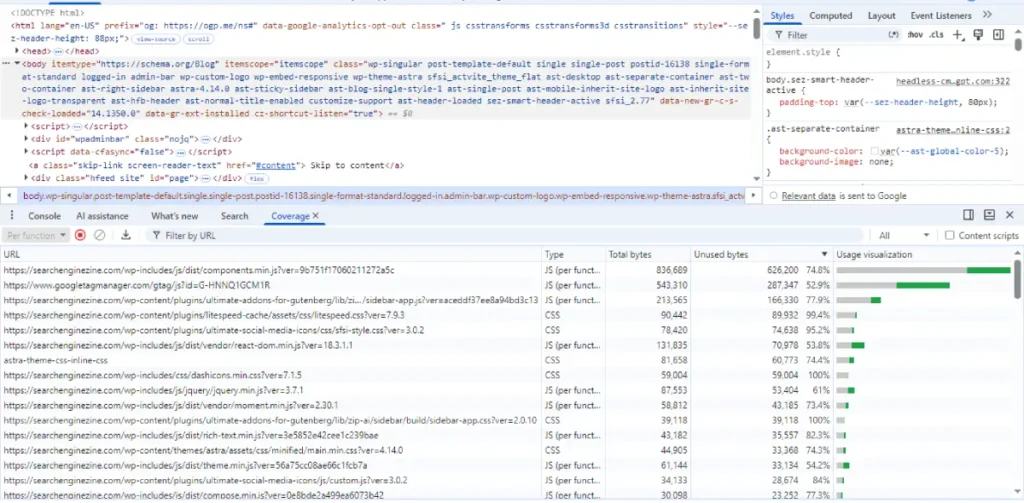
For granular debugging on individual templates (such as product pages, blog posts, or category archives), open Chrome DevTools:
- Network Panel: Reload the page with cache disabled and sort by the Waterfall column. Look for
.cssand.jsfiles finishing before the vertical blue (DOMContentLoaded) and green (First Paint) lines. - Coverage Panel: Press
Cmd+Shift+P(Mac) orCtrl+Shift+P(Windows), type Coverage, and record a page load. The Coverage tab reveals the exact percentage of unused bytes inside every CSS and JavaScript file, highlighting bloated stylesheets ripe for splitting or removal.
Actionable Strategies to Eliminate Render-Blocking CSS
Optimizing CSS delivery revolves around shrinking the critical CSS payload and loading non-critical rules asynchronously.
Extract and Inline Critical CSS
Critical CSS consists solely of the style rules needed to render the above-the-fold portion of a webpage. By extracting those rules and placing them directly inside a <style> block in the <head> of the HTML document, the browser can construct the CSSOM immediately without making an extra network round-trip.
Once critical CSS is inlined, load the remaining full stylesheet asynchronously using the media="print" pattern paired with an onload handler:
HTML
<head>
  <style>
    /* Minimal above-the-fold layout, typography, and header styles */
    body { margin: 0; font-family: system-ui, sans-serif; }
    .site-header { display: flex; padding: 1rem; background: #111; color: #fff; }
  </style>

  <link rel="stylesheet" href="/assets/main.css" media="print" onload="this.media='all'">
  <noscript><link rel="stylesheet" href="/assets/main.css"></noscript>
</head>
Because media="print" does not apply to screen viewports, the browser downloads main.css at a lower priority without blocking rendering. Once the download completes, the onload event switches the media type to all, applying the remaining styles smoothly. The <noscript> fallback ensures users with JavaScript disabled still receive full styling.
Split Stylesheets by Media Query and Template
Avoid bundling an entire site’s CSS into a single monolithic file if templates differ significantly. Separating stylesheets by conditional media queries allows browsers to prioritize only relevant styles:
HTML
<link rel="stylesheet" href="base.css">
<link rel="stylesheet" href="desktop.css" media="(min-width: 1024px)">
<link rel="stylesheet" href="print.css" media="print">
On a mobile device, desktop.css is downloaded in the background without delaying initial rendering. Similarly, isolating WooCommerce, form, or comment-section stylesheets so they only load on templates that actually contain those components reduces CSS byte weight sitewide.
Remove Unused CSS and Avoid @import
Legacy themes and page builders frequently load icon libraries, animation frameworks, and unused grid systems on every URL. Audit stylesheets with Chrome’s Coverage tool and strip out dead rules.
Furthermore, never use CSS @import rules inside stylesheets to load secondary CSS files; @import forces sequential, serial downloads because the browser cannot discover the imported file until the parent stylesheet finishes downloading and parsing.
Actionable Strategies to Eliminate Render-Blocking JavaScript
JavaScript optimization focuses on controlling execution timing so scripts do not interrupt HTML parsing.
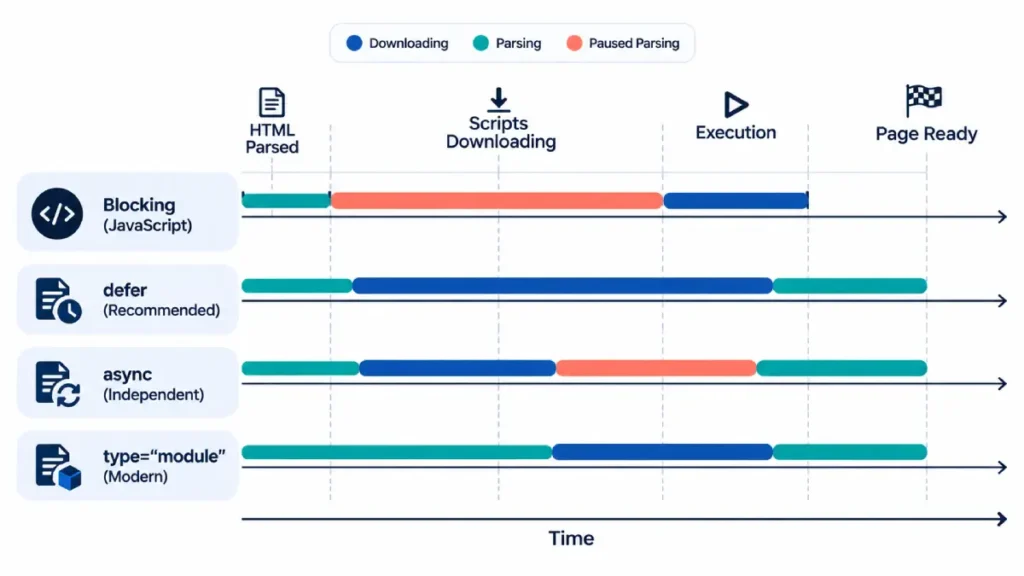
Choosing Between defer, async, and Module Scripts
Modern HTML provides native attributes to eliminate parser-blocking behavior on external scripts (MDN Web Docs):
| Script Attribute | Downloads During HTML Parsing? | Blocks HTML Parsing During Execution? | Preserves Execution Order? | Best Use Case |
Standard <script> | No (pauses parser) | Yes | Yes | Avoid in <head> unless strictly required |
defer | Yes (parallel) | No (runs after DOMContentLoaded) | Yes | Core UI scripts, frameworks, jQuery-dependent code |
async | Yes (parallel) | Yes (pauses parser briefly when ready) | No (executes immediately upon download) | Independent third-party analytics or ad tags |
type="module" | Yes (parallel) | No (deferred by default) | Yes | Modern ES6+ modular JavaScript applications |
- Use
deferas your default: Scripts with thedeferattribute download in parallel with HTML parsing and execute in the exact order they appear in the document right after the DOM is fully constructed. This makesdefersafe for dependent scripts (for example, a theme script that relies on a core library loaded right before it). - Reserve
asyncfor standalone scripts: Becauseasyncscripts execute the instant they finish downloading—regardless of document order—they can break if they depend on another script or expect specific DOM elements to exist. Useasyncfor self-contained tracking pixels or analytics snippets.
Delay Non-Essential Third-Party Scripts
Marketing pixels, live chat widgets, heatmap trackers, and social media embeds often account for the majority of render-blocking and main-thread work on commercial websites. Even when loaded asynchronously, third-party scripts consume CPU cycles and network bandwidth during initial page load.
For scripts that provide zero value during the first moments of a visit—such as customer support chat bubbles or exit-intent popups—delay loading until user interaction (scroll, mousemove, touchstart, or click) or after the window.load event fires.
Move Legacy Inline Scripts Carefully
If you defer an external library like jQuery, any inline <script> block sitting inside the HTML body that calls jQuery(...) or $(...) will throw a ReferenceError because inline scripts execute immediately while the deferred library is still waiting for DOM completion. To resolve this, either wrap inline code in a DOMContentLoaded event listener or move the inline logic into an external deferred file.
WordPress-Specific Considerations for SEOs
Many SEO teams manage sites running on WordPress, where plugins and themes routinely inject CSS and JavaScript into wp_head without performance safeguards.
- Audit Plugin Asset Bloat: Use asset management plugins (such as Perfmatters or Asset CleanUp) to dequeue plugin stylesheets and scripts on pages where those plugins are inactive—for example, disabling contact form scripts on blog articles.
- Configure Performance Plugins Safely: Tools like WP Rocket, FlyingPress, and LiteSpeed Cache offer automated Remove Unused CSS (RUCSS), Load JavaScript Deferred, and Delay JavaScript Execution features. Whenever you enable these settings, test interactive components—mobile navigation drawers, accordions, mega-menus, and checkout forms—in an incognito window to verify that deferred execution does not introduce console errors or broken UI states.
- Check Font Loading Interaction: While web fonts themselves are not strictly parser-blocking in the same manner as synchronous scripts, hosting custom fonts via external CSS providers (such as Google Fonts stylesheets) adds a render-blocking CSS request. Self-hosting WOFF2 font files and applying
font-display: swapeliminates the external stylesheet round-trip and prevents invisible text during rendering (web.dev).
Common Pitfalls and Trade-Offs
Eliminating render-blocking resources requires balancing speed gains against visual stability and functionality:
- Cumulative Layout Shift (CLS) Regressions: If your inlined critical CSS omits explicit dimensions for headers, navigation bars, or hero containers, loading the full stylesheet asynchronously can cause page elements to jump—trading an LCP improvement for a CLS penalty. Always verify CLS scores after modifying CSS delivery.
- Over-Inlining Critical CSS: Inlining 60 KB of CSS directly into the HTML document bloats the initial TTFB/HTML download size and prevents that CSS from being cached across subsequent pageviews. Keep inlined critical CSS lean—typically under 10–15 KB compressed—covering only the initial viewport.
- Deferring Above-the-Fold Interactive Components: If your hero section relies on a JavaScript slider or interactive search bar, deferring or delaying its script too aggressively can make the element appear unresponsive immediately after paint, hurting Interaction to Next Paint (INP).
Implementation Checklist for Technical SEO Audits
Use the following workflow when rolling out render-blocking optimizations across a site:
- Baseline Metrics: Record field and lab FCP, LCP, CLS, and INP scores for top-performing templates (homepage, category, article, product).
- Inventory Blocking Assets: Run PageSpeed Insights and Chrome DevTools Coverage to list every blocking CSS and JS file.
- Eliminate Dead Code: Remove unused plugins, legacy libraries, and
@importdeclarations before applying deferral tricks. - Apply
deferto Scripts: Adddeferto non-critical<script>tags and verify zeroReferenceErrorexceptions in the browser console. - Split and Inline Critical CSS: Inline minimal above-the-fold CSS and load non-critical stylesheets asynchronously.
- Validate Across Devices: Test mobile and desktop viewports for FOUC, layout shifts, and interactive functionality before deploying to production.